Network & Pairing
1. How to network for equipment
The @Pette Mini smart pipette's voice assistant feature relies on AI large model data and can only be operated in online mode.
1. Press the "Home" button on the main screen to enter the "Mode" menu.
Tap on Wireless Connection and select Device Configuration.
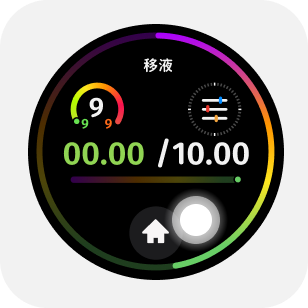
Tap Home
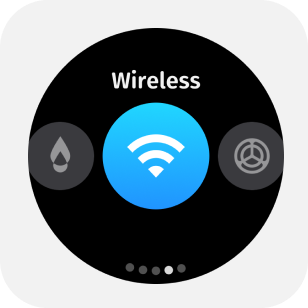
Wireless Connection
2. Open the Pipette Assistant app, tap on Device Configuration on the main page, and scan the QR code on the pipette screen to connect.

Open the app
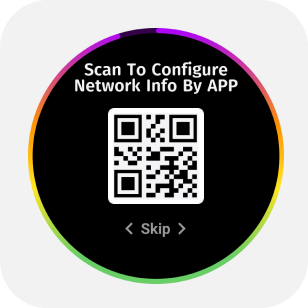
Scan the QR code
3. The pipette screen shows that it is entering configuration mode. Select the Wi-Fi name, enter the correct password, and tap to send to the pipette. Wait a few seconds until the pipette displays that it is connected to complete the network operation.
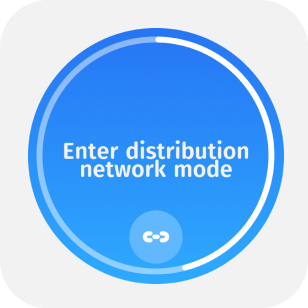
Configuration mode
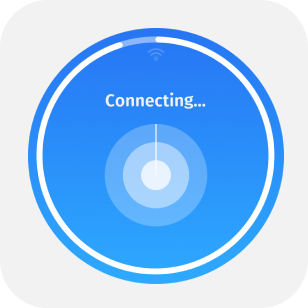
Connecting
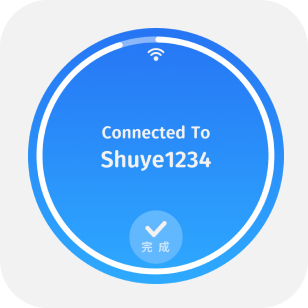
Connected